

Use The IT Knowledge Base
Use this guide when you need to look up runbooks or imported support content, create native knowledge documents, or manage the external systems that sync read-only content into Pharaoh.
Endpoint-specific self-healing knowledge lives in the endpoint knowledge document under Endpoint Self-Healing. Use IT Knowledge Base for organization-wide documents and imported provider content.
Before You Start
Section titled “Before You Start”- You need to be signed in to the authenticated shell.
- Organization onboarding must be complete.
- For imported-source management, you need the provider details and secrets for the system you want to connect.
- Expect native documents and imported documents to behave differently: imported content is read-only inside Pharaoh.
Step 1: Open The IT Knowledge Base
Section titled “Step 1: Open The IT Knowledge Base”Open IT Knowledge Base from the Operations navigation group.
The page is organized into two tabs:
DocumentsImport Sources
Use Documents for day-to-day lookup and authoring. Use Import Sources when you need to connect or maintain SharePoint or Freshservice sync.
Step 2: Work In The Documents Tab
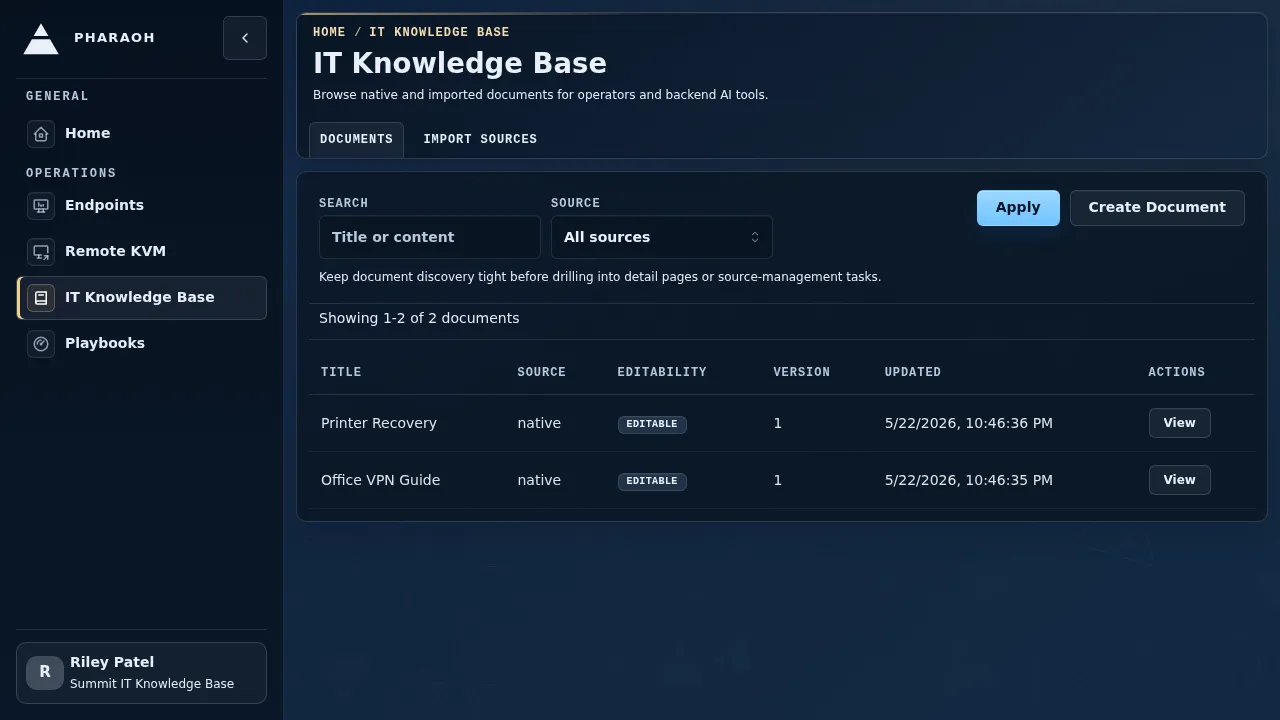
Section titled “Step 2: Work In The Documents Tab”The Documents tab is the primary operator view.
What you should see:
- a
Searchfield - a
Sourcefilter - an
Applyaction Create Documentwhen document creation is available in the current state
If no documents exist yet, Pharaoh shows No IT knowledge documents yet with two next actions:
Create DocumentConfigure Import Sources
Use the table when documents already exist. Each row shows:
- the document title
Source- whether it is
EditableorRead-only - the version
- the last update time
Start with search and filters before opening a document. During an incident, narrowing by source can quickly separate native Pharaoh notes from imported SharePoint or Freshservice content.
Step 3: Create Or Open A Document
Section titled “Step 3: Create Or Open A Document”Use Create Document when you want a native document managed directly in Pharaoh.
Use the row View action, or open the row itself, when you want to inspect an existing document. The detail page is where you edit native documents or review imported content.
Remember the main distinction:
- native documents are editable
- imported documents stay read-only
If a document came from SharePoint or Freshservice, treat Pharaoh as the place to consume it, not the place to rewrite the original source.
Step 4: Use The Detail Editor
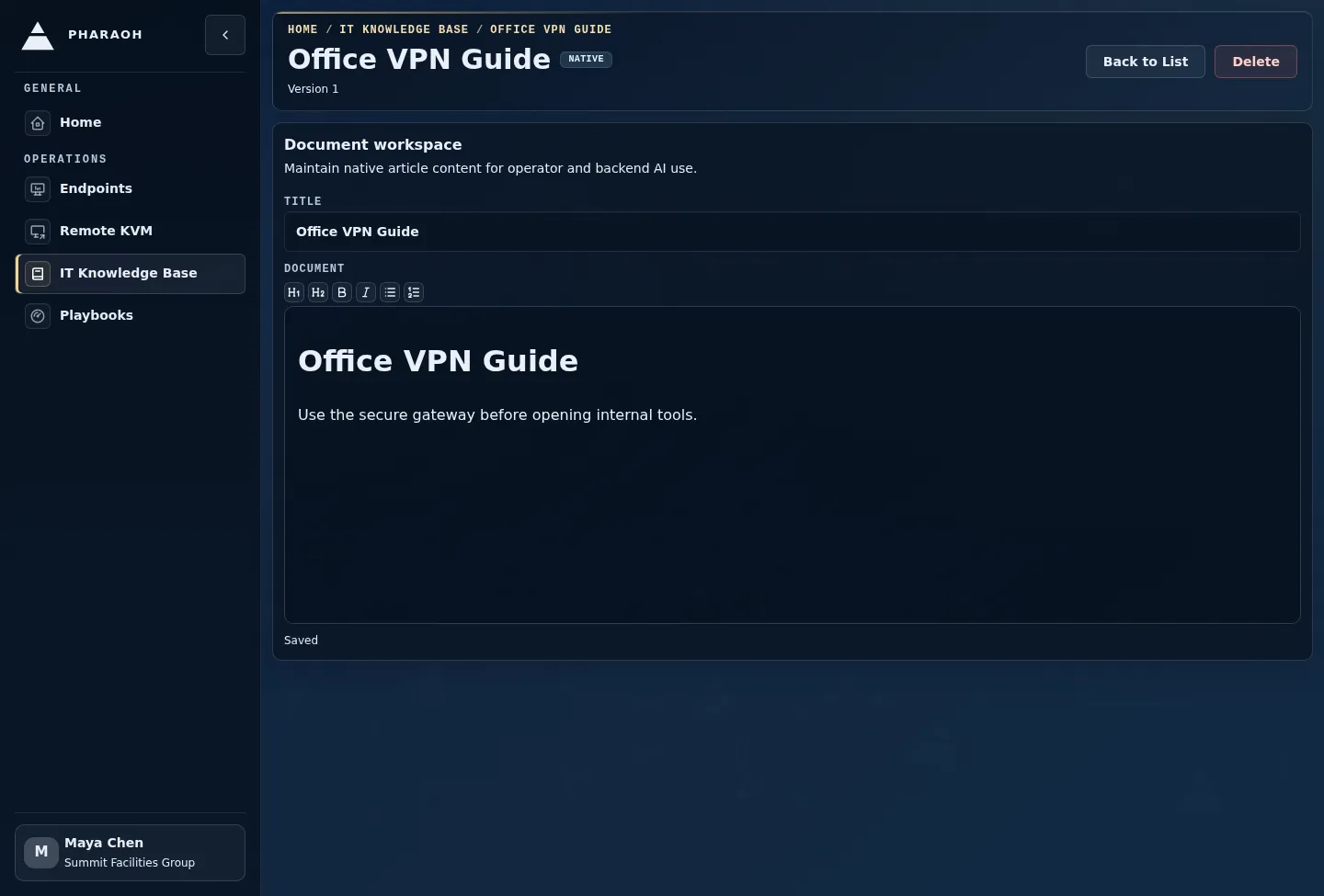
Section titled “Step 4: Use The Detail Editor”The document detail page keeps the document body, metadata, and save state in one place.
For a native document:
- Review the title and source label.
- Edit the document content.
- Check whether the page reports an editable state.
- Save the document.
- Return to the list and confirm the updated timestamp changed as expected.
For an imported document, use the detail page to read and verify the content. If the imported content is wrong, update the source system and run or wait for sync rather than editing it in Pharaoh.
Step 5: Handle Error Or Empty States
Section titled “Step 5: Handle Error Or Empty States”If the documents list cannot load, Pharaoh keeps the page visible and shows the failure state in the document area.
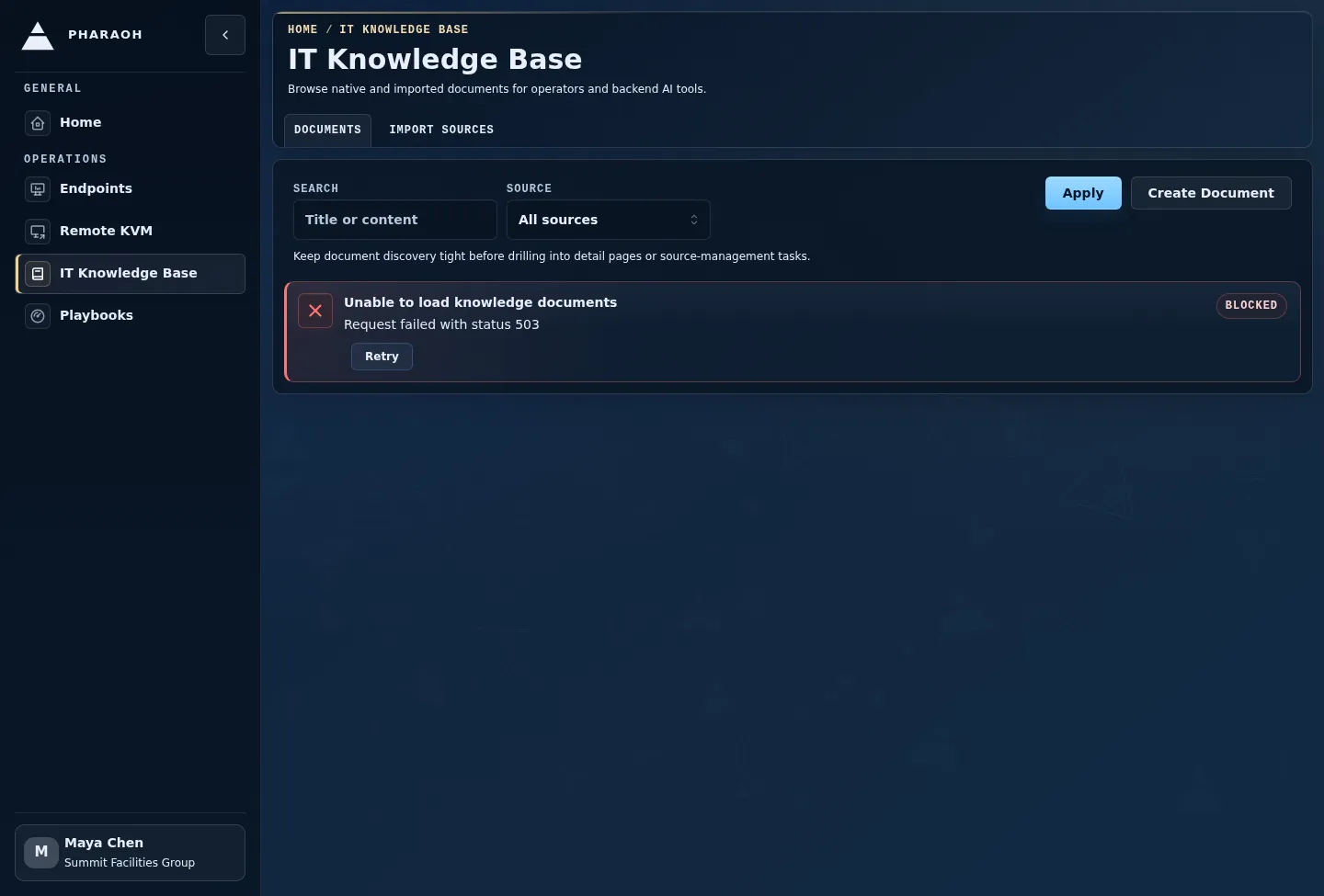
Use this recovery sequence:
- Keep any incident notes outside the failed page before refreshing.
- Select
Applyagain if you changed search or source filters. - Refresh the page if the same query still fails.
- Check whether the failure is isolated to one source filter.
- Escalate with the visible error text if the list remains unavailable.
If no documents exist yet, Pharaoh shows No IT knowledge documents yet with Create Document and Configure Import Sources. Choose Create Document for native content you own in Pharaoh. Choose Configure Import Sources when the content should come from SharePoint or Freshservice.
Step 6: Manage Import Sources
Section titled “Step 6: Manage Import Sources”Open the Import Sources tab when you need to connect or maintain external knowledge feeds.
Pharaoh currently exposes provider cards for:
SharePointFreshservice
Each card includes:
Display nameEnable sync after save- provider-specific connection fields
ConnectorSaveSync NowDisable
Provider-specific requirements matter:
- SharePoint requires
Site URLand aBearer token - Freshservice requires
Base URLand anAPI key - Freshservice
Folder IDis optional, but when used it must be a positive integer
If a provider is already configured, Pharaoh lets you leave the secret blank to keep the stored credential unchanged.
Step 7: Understand Sync And Disable Behavior
Section titled “Step 7: Understand Sync And Disable Behavior”After a successful save:
- a new source usually reports that the integration connected and the initial sync was queued
Sync Nowis available for enabled integrations- the provider card shows status, secret-configured state, and last sync details when present
When you use Disable, Pharaoh warns that imported documents from that source will be removed. This is a lifecycle action, not just a cosmetic toggle.
What Success Looks Like
Section titled “What Success Looks Like”You are done when all of the following are true:
- you can find the document you need with the
Documentstab filters - native documents are created or updated in the expected place
- imported documents are clearly read-only
- any connected SharePoint or Freshservice source shows the expected sync status
- you understand that disabling an integration removes its imported documents through the normal cleanup path