

Resolve A Failed Endpoint Check
Use this walkthrough when an endpoint Sentinel status or endpoint self-healing history shows a failed check and you need to decide what to do next.
Outcome
Section titled “Outcome”By the end of this walkthrough, you will know how to inspect the failure, decide whether automated self-healing is already handling it, and confirm the endpoint is healthy or properly escalated.
Starting Context
Section titled “Starting Context”- You are signed in.
- You know the endpoint hostname or endpoint id.
- The endpoint has a visible
Sentinelstatus such asFailed,Timeout,Invalid output,Policy denied,Runner error, orStale. - You have access to
Self-Healingif you need to review endpoint self-healing history or escalations.
Step 1: Open The Endpoint
Section titled “Step 1: Open The Endpoint”Open Endpoints, find the endpoint, and select the row.
Start with the endpoint header and identity panel. Confirm:
- hostname and
Computer ID - OS, architecture, and agent version
Last Seen- that you are in the expected organization
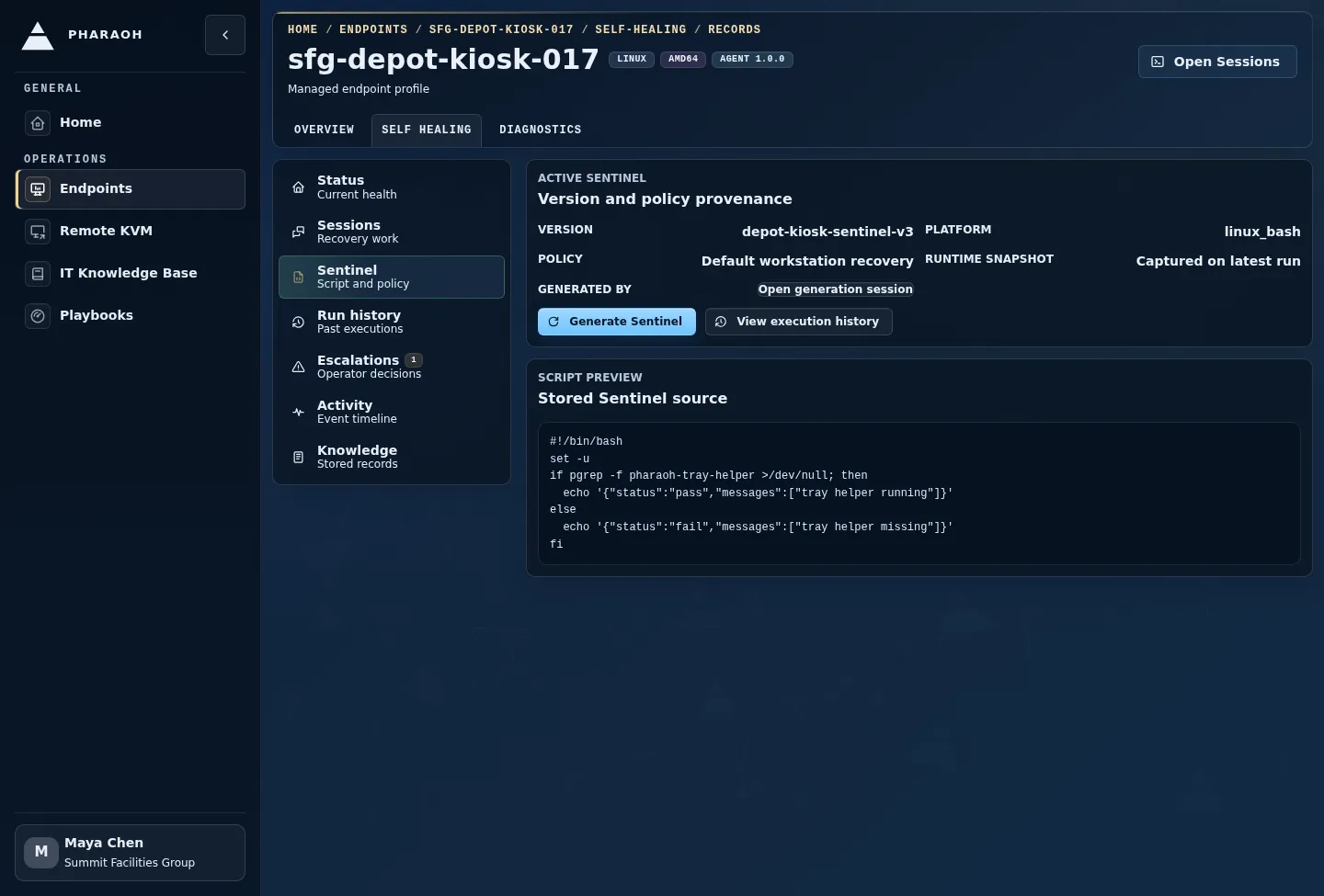
If the endpoint has not been seen recently, handle freshness first with Respond to stale or offline endpoints.
Step 2: Read The Sentinel Panel
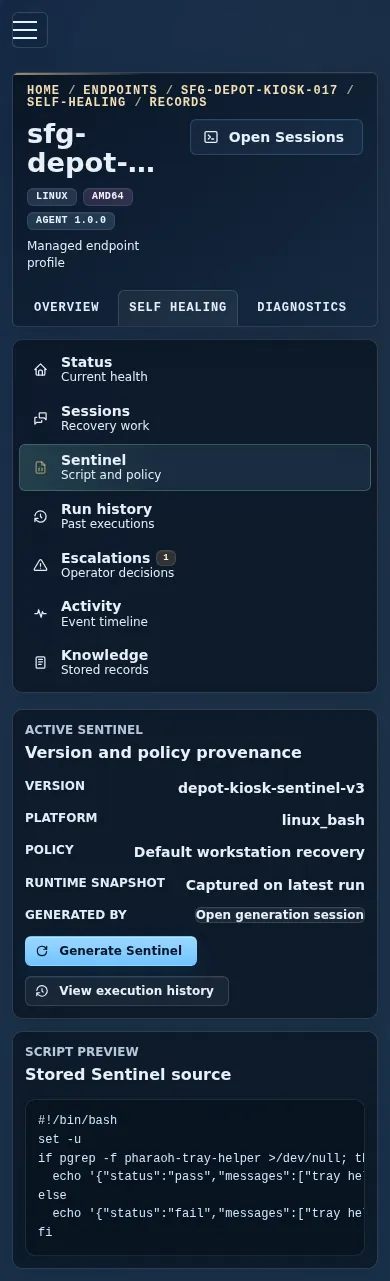
Section titled “Step 2: Read The Sentinel Panel”Review the endpoint Sentinel panel before opening a session.
Focus on:
- status
- latest summary
Last runDurationVersionPolicy- active session or agent thread links, when present
- pending escalation count
On mobile, the panel stacks the same evidence vertically. Confirm the status and summary first, then continue down to run timing, policy, session/thread links, escalation count, and endpoint knowledge document status, metadata, and length.
Decision points:
Failed: continue into endpoint self-healing history.Timeout: treat it as a real failed check unless later history shows a successful newer run.Invalid output: the check result could not be parsed into the expected bounded status format.Policy denied: the check or attempted action hit a guardrail boundary.Runner error: the endpoint runner could not complete the check.Stale: compareLast runwith endpointLast Seenbefore deciding whether this is a check problem or a connectivity problem.
Step 3: Open Endpoint Self-Healing Detail
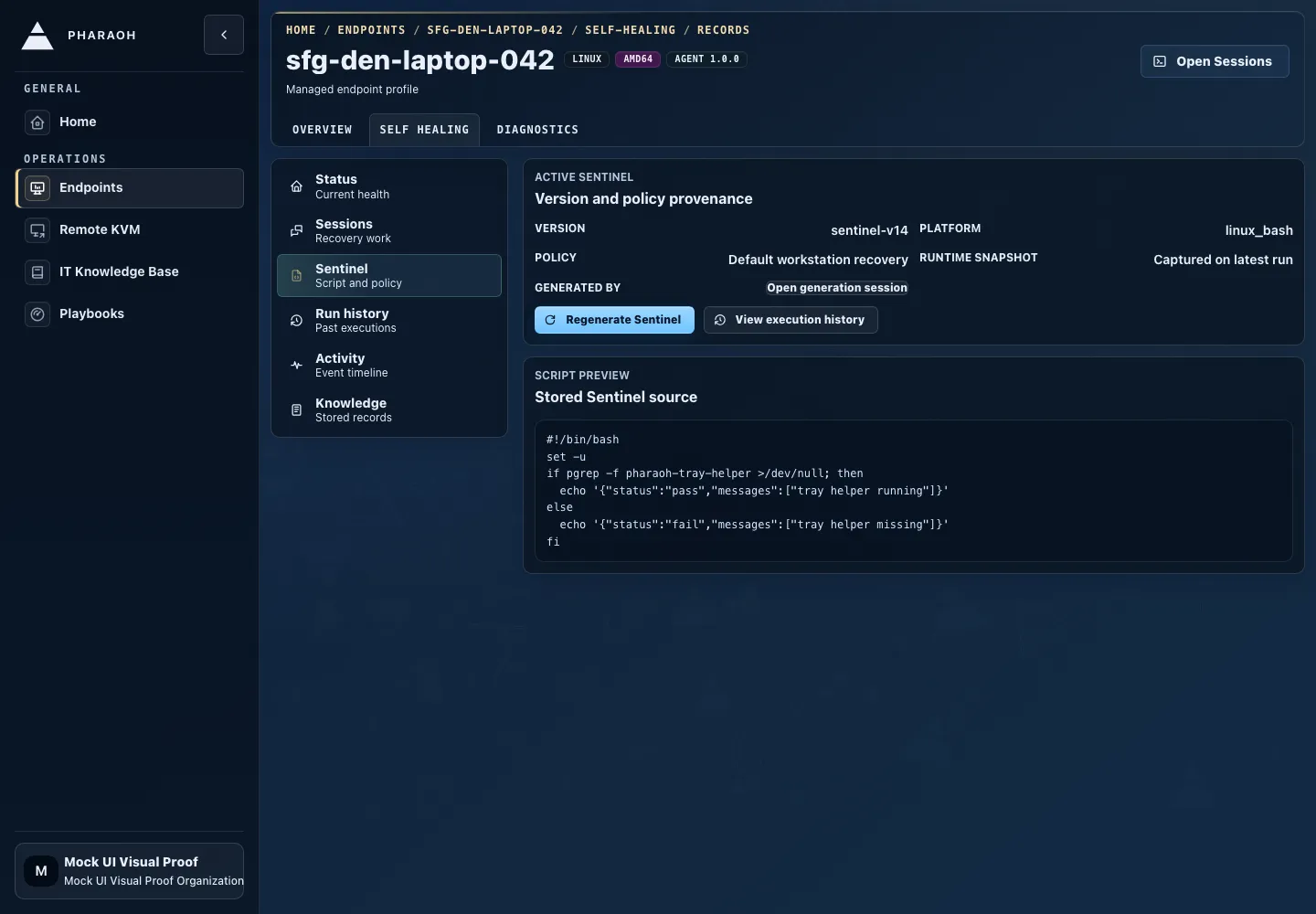
Section titled “Step 3: Open Endpoint Self-Healing Detail”From the Sentinel panel, use Self-healing to open the endpoint-specific self-healing page. It opens inside the endpoint detail shell with the Status view selected. Use Run history when you want the page focused on Sentinel history.
On the Sentinel view, inspect:
- active Sentinel version, platform, policy, and runtime snapshot
- generation, validation, and activation provenance
- latest execution status and completed time
Regenerate Sentinelwhen the current script needs a new candidateView execution historywhen you need the run-history table
Look for the newest execution first. Older failed executions should not override a newer successful run.
Step 4: Check Sessions, Activity, And Knowledge
Section titled “Step 4: Check Sessions, Activity, And Knowledge”Move through the endpoint self-healing views in this order:
Sessions: check whether a self-healing session already started, whether it is active, awaiting escalation, or terminal, and whether there is an agent thread link.Run history: compare the newest Sentinel execution with older failed, timed-out, or policy-denied runs.Activity: review the combined timeline for Sentinel, session, knowledge-document, and escalation events.Knowledge: check the endpoint knowledge document for durable facts that may explain a false positive or special handling.Escalations: check endpoint-scoped escalation rows and confirm whether a human decision is still pending.
Decision points:
- Active session exists: open the session or thread instead of starting duplicate manual work.
- Terminal session says fixed: return to the
Sentinelview and confirm a newer passed execution when available. - False positive context exists in the knowledge document: confirm it applies to this endpoint, but do not treat the document as a reason to suppress failed Sentinel execution triggers.
- Pending escalation exists: review it before taking separate action.
Step 5: Review Endpoint-Scoped Escalations
Section titled “Step 5: Review Endpoint-Scoped Escalations”If there is a pending escalation, use the endpoint self-healing Escalations view to understand why Pharaoh stopped and what it asked for.
Inspect:
- category
- requested action
- endpoint id
- thread id
- created and expiry times
Resolve the escalation through the endpoint’s owning session or thread context so the decision stays tied to the affected endpoint.
Step 6: Confirm Resolution
Section titled “Step 6: Confirm Resolution”Return to the endpoint detail page or endpoint self-healing page.
A failed endpoint check is resolved when one of these is true:
- a newer Sentinel execution shows
Passed - a self-healing session has a terminal
fixedoutcome and the current endpoint state matches expectations - the failure is documented as a false positive in the endpoint knowledge document and the active Sentinel is corrected through regeneration when needed
- the issue is escalated and waiting on an operator decision
- the endpoint is stale or offline and the next action is connectivity, power, or enrollment follow-up