

Review Self-Healing Escalations
Use this guide when Pharaoh has created a self-healing escalation and an operator needs to inspect, approve, or reject it. The goal is to make a bounded operational decision: let Pharaoh continue the specific requested work, or stop it and record why.
Before You Start
Section titled “Before You Start”- You need to be signed in to the authenticated shell.
- You need access to self-healing escalation review surfaces to inspect the queue.
- You need a reviewer role such as owner, admin, or self-healing escalation review permission before approval or rejection actions appear.
- If you plan to reject an escalation, prepare a short reason. The
Rejectaction stays disabled untilRejection reasonhas text.
Decide with current endpoint context. If the request affects endpoint state, needs a policy exception, or asks for more permission, plan to open the endpoint self-healing page before you approve.
Step 1: Open The Escalation Queue
Section titled “Step 1: Open The Escalation Queue”Open an escalation from Self-Healing, an endpoint self-healing page, or an endpoint Sentinel panel.
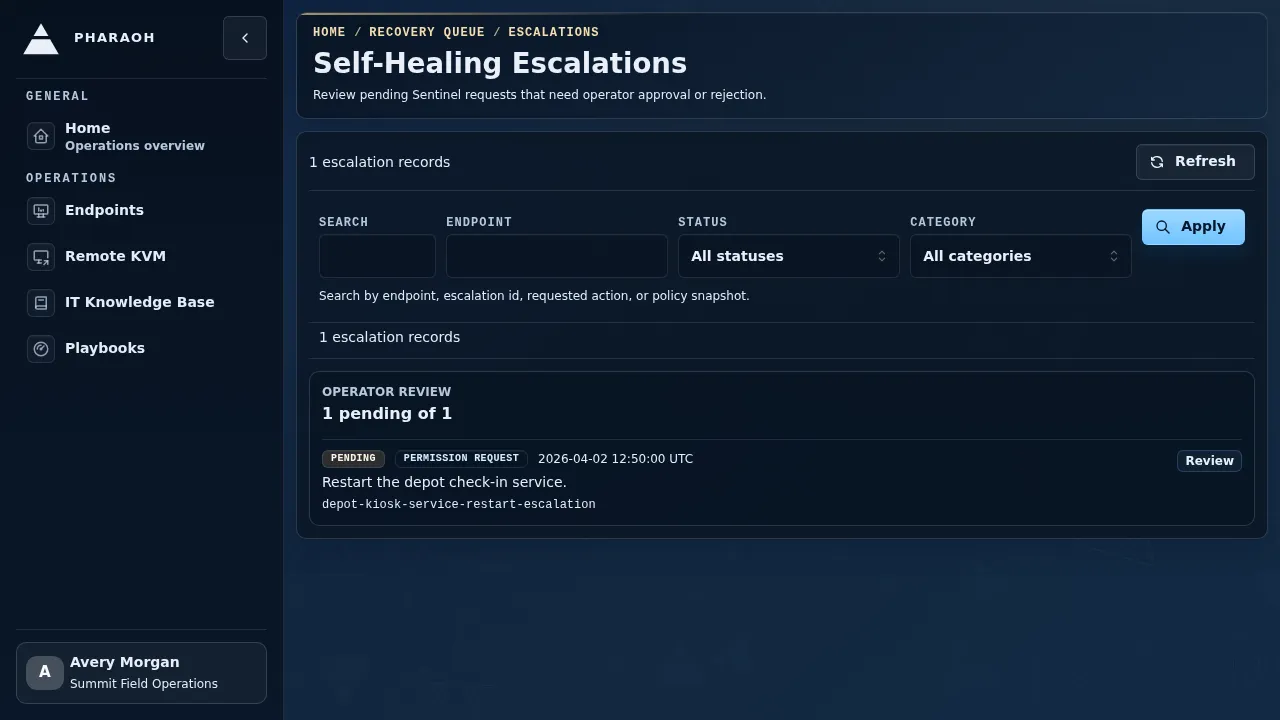
On desktop, start with the full queue so you can see filters and several records at once. On mobile, the same row fields are available in a narrower layout for on-call review.
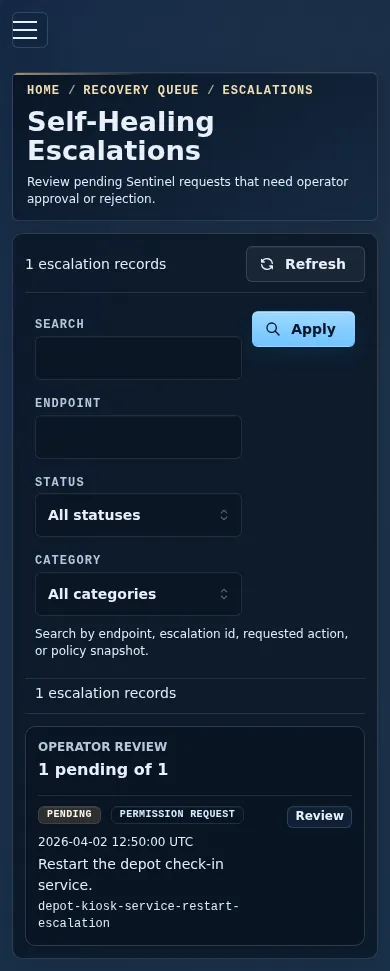
The queue shows escalation records with:
- status
- endpoint
- category
- requested action
- created time
Review
Use Refresh when you need the latest queue state. Treat Pending rows as the active workload. Use approved, rejected, and expired rows when you need audit context or when an endpoint appears to be repeating the same request.
Step 2: Narrow The Queue
Section titled “Step 2: Narrow The Queue”Use the filters before opening a record:
- Enter text in
Searchwhen you know an endpoint, escalation id, requested action, or policy snapshot. - Enter an endpoint id in
Endpointwhen you want a single endpoint. - Choose a
Status. - Choose a
Category. - Select
Apply.
If no records match, Pharaoh shows No self-healing escalations.
Filtering by endpoint is useful before a decision because it can reveal repeated escalations, recent rejections, or an approval that has already handled the same issue.
Step 3: Open Review Detail
Section titled “Step 3: Open Review Detail”Select Review on the row you need.
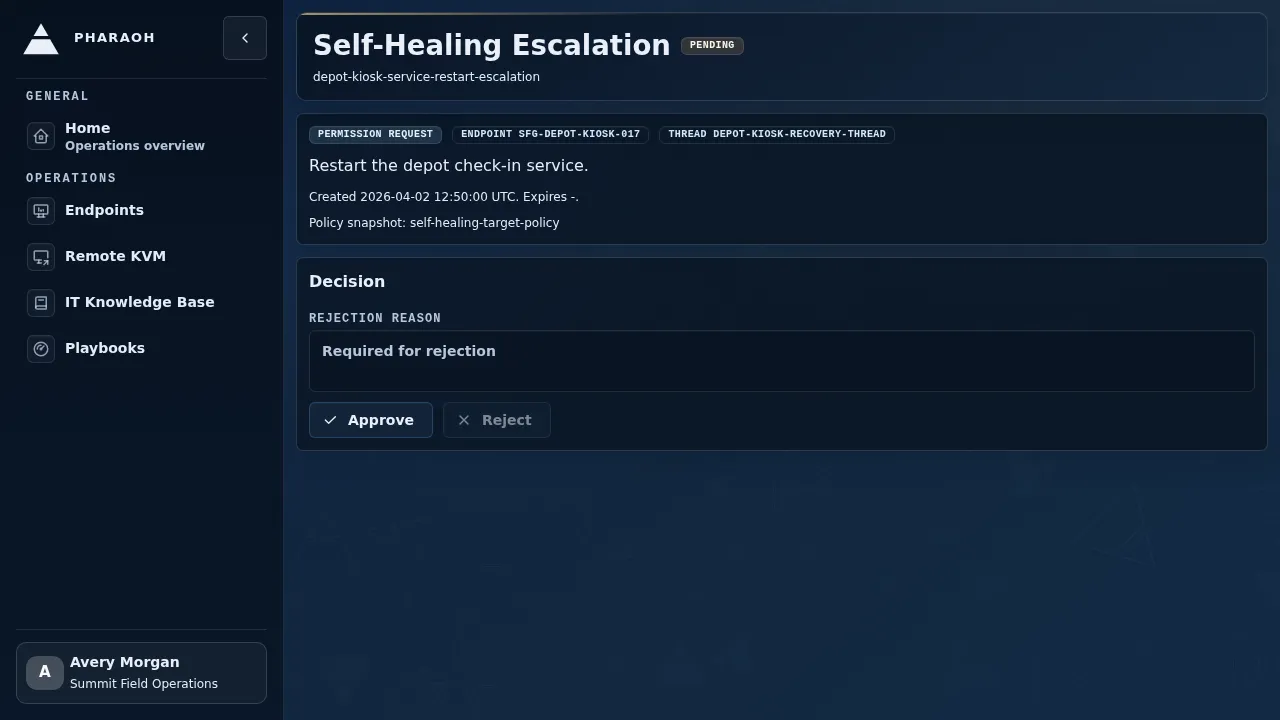
On mobile, confirm the request summary before using the decision controls near the bottom of the page.
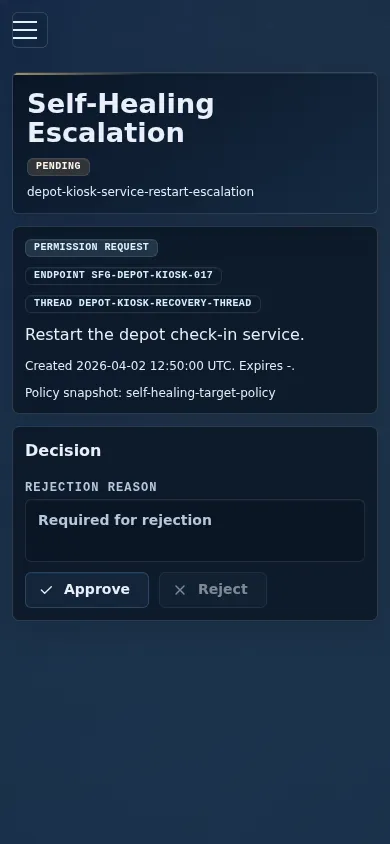
The Self-Healing Escalation page shows:
- the escalation id
- current status
- endpoint id
- agent thread id
- category
- requested action
- created and expiry times
- policy snapshot
- existing grants when any are recorded
Read the requested action literally. Approval applies to this request, for this endpoint, in the context shown on the page. It is not a general approval for similar future automation.
Step 4: Check Endpoint Context
Section titled “Step 4: Check Endpoint Context”Open the endpoint from the id when the escalation is not obviously low risk or when the review detail does not provide enough context.
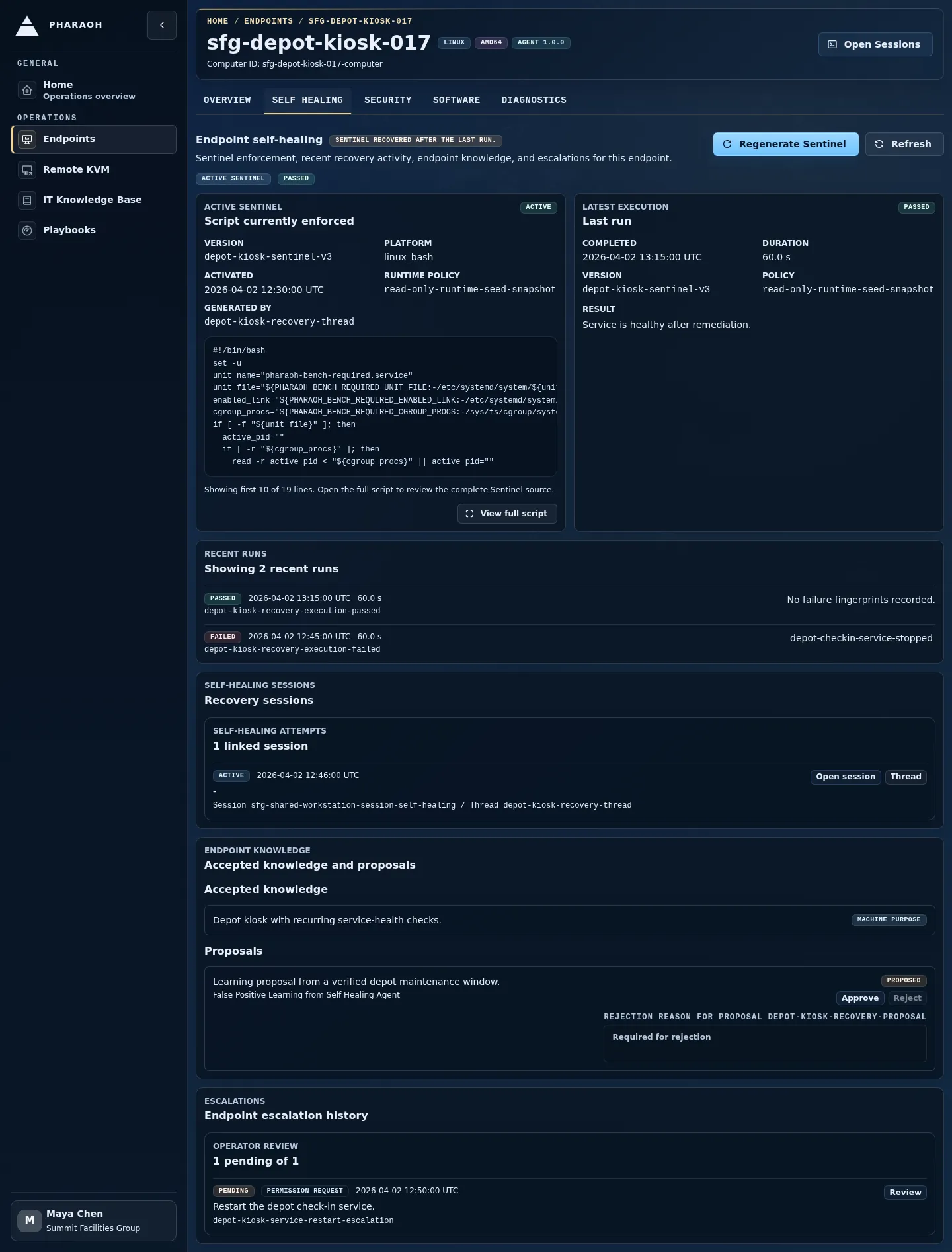
On the endpoint self-healing page, use:
Sentinelto check latest status, run recency, version history, and execution historySessionsto see what Pharaoh already attempted and whether the request is a continuation of that workKnowledgeto review accepted endpoint-specific facts and pending proposals that may explain repeated behaviorEscalationsto see prior decisions for the same endpoint
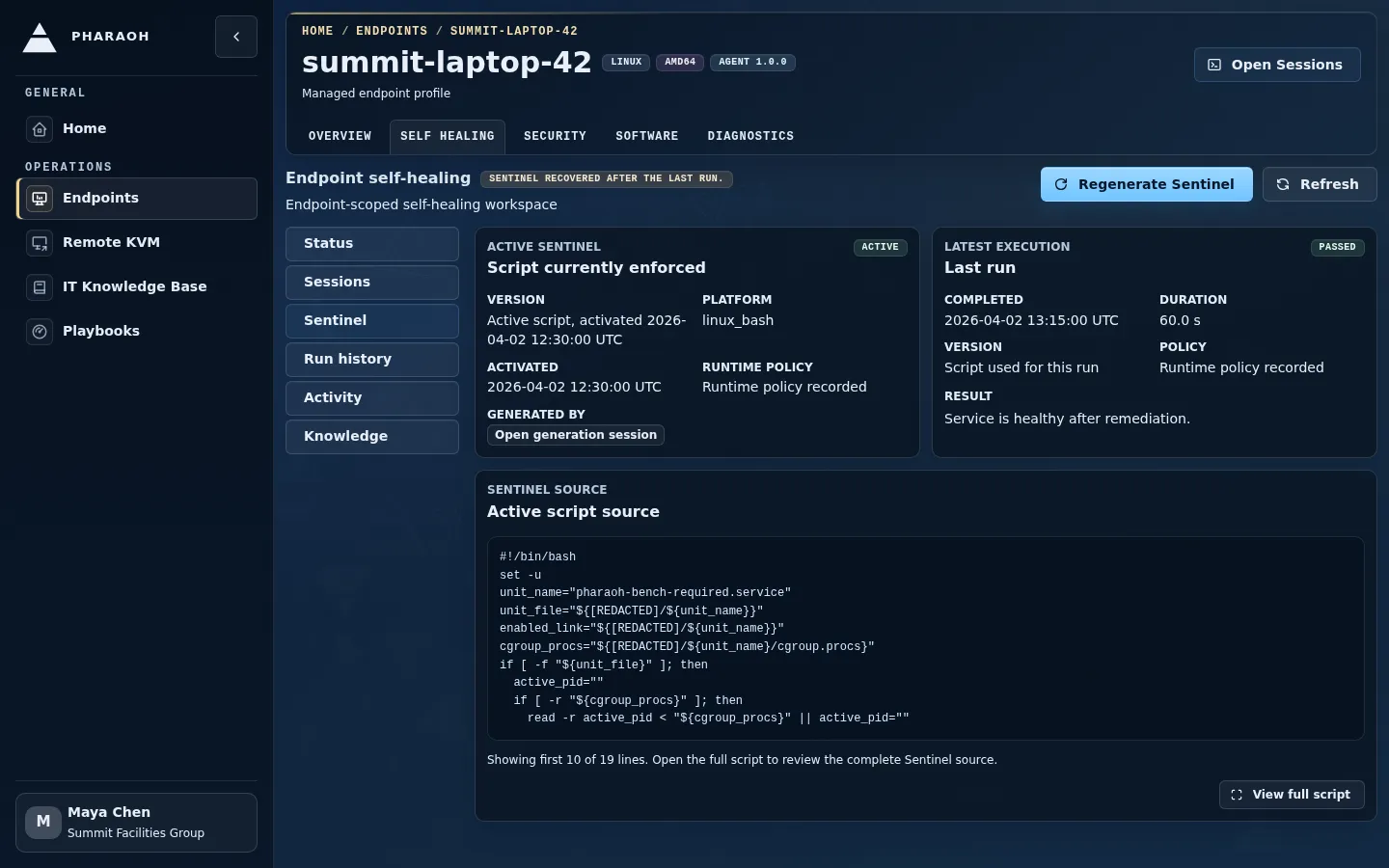
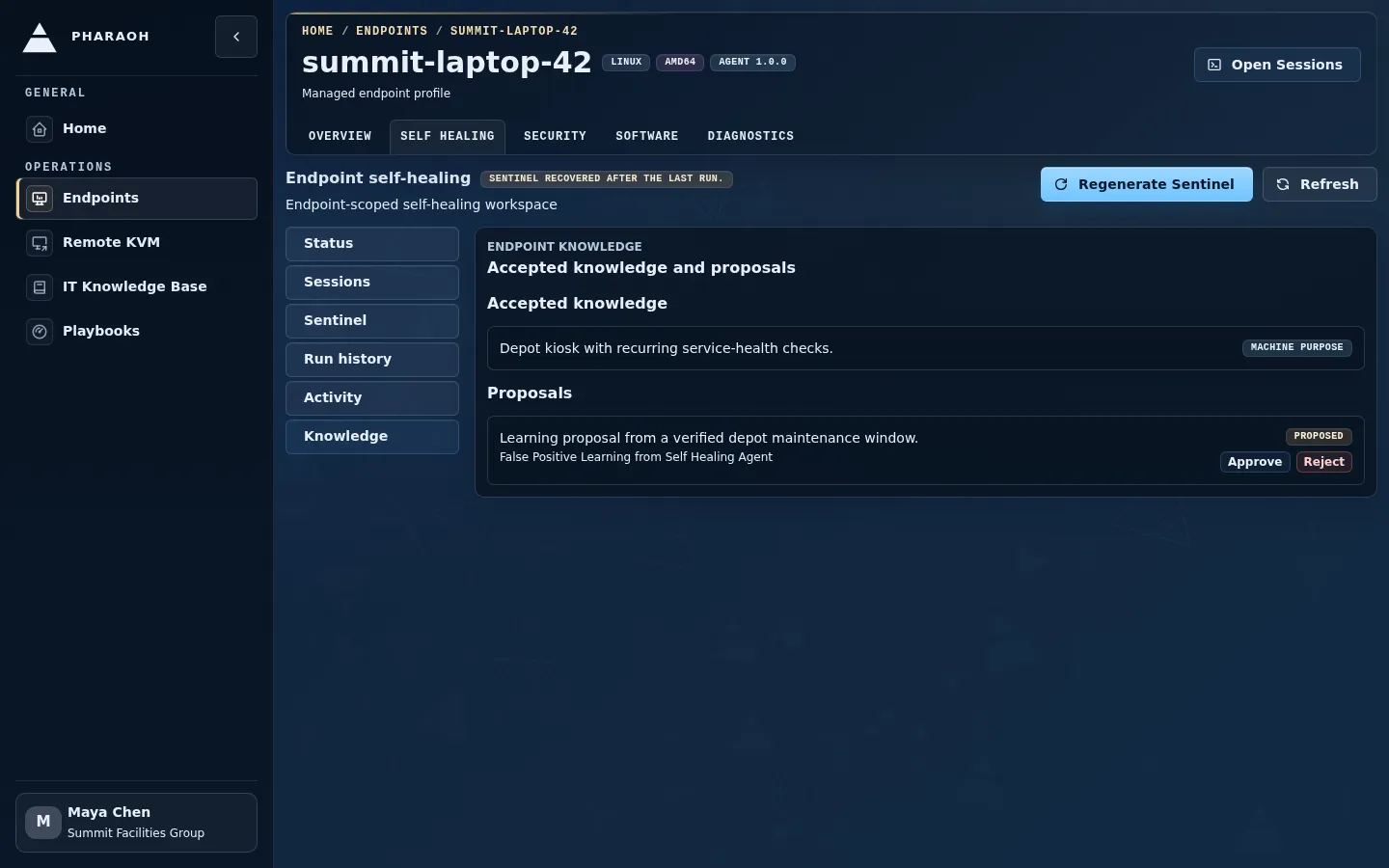
Use endpoint context to answer these questions before deciding:
- Is the Sentinel result current enough to trust?
- Did prior automation fail for a reason this approval would actually address?
- Does accepted endpoint knowledge support the requested action?
- Has the same endpoint already had a similar request approved, rejected, or expired?
- Would approving now conflict with policy, change control, or the endpoint’s business role?
Step 5: Approve Or Reject
Section titled “Step 5: Approve Or Reject”For a pending escalation with review permission:
- select
Approvewhen the requested continuation is specific, current, supported by endpoint context, and acceptable under policy - enter
Rejection reason, then selectRejectwhen the request should not continue
Reject rather than approve when:
- the request is stale or close enough to expiry that endpoint state may have changed
- the requested action is too broad for the evidence shown
- the policy snapshot or grants do not justify the action
- the endpoint has repeated failures that need manual investigation
- the request duplicates a pattern that was already rejected
- the action is outside the expected operational boundary for that endpoint
For a pending escalation without review permission, Pharaoh leaves the detail available for inspection and shows that review permission is required.
Approved, rejected, and expired escalations remain inspectable, but the decision controls are no longer shown as a pending decision.
Step 6: Confirm The Result
Section titled “Step 6: Confirm The Result”After your decision, the page reports one of these outcomes:
Escalation approved.Escalation rejected.- a backend error message if the request did not complete
Return to the escalation queue and refresh it when you need to confirm the status in the list.
For approved requests, check the endpoint self-healing page after Pharaoh continues work. Confirm the latest Sentinel, session history, and escalation history show the expected outcome. For rejected requests, confirm the row no longer appears as pending and that the rejection reason is clear enough for the next reviewer to understand the boundary.