

Respond To Stale Or Offline Endpoints
Use this guide when an endpoint exists in Pharaoh but inventory, diagnostics, Sentinel context, or live session evidence looks old, missing, or unavailable.
The goal is to separate a normal offline computer from a stale agent, a partial collection problem, or a session that should not be trusted for live work yet.
Before You Start
Section titled “Before You Start”- You need access to
Endpoints. - You need the hostname, computer ID, operating system, owner, ticket, or other detail that identifies the endpoint.
- Decide how urgent the endpoint is. A powered-off laptop is a different case from a server that should be continuously online.
- If you will use self-healing context, you need access to
Self-Healingor the endpointSentinelpanel.
Step 1: Find The Endpoint
Section titled “Step 1: Find The Endpoint”Open Endpoints.
Use Search, the OS filter, and Apply to find the endpoint. Sort by Last Seen when you are comparing several similar machines.
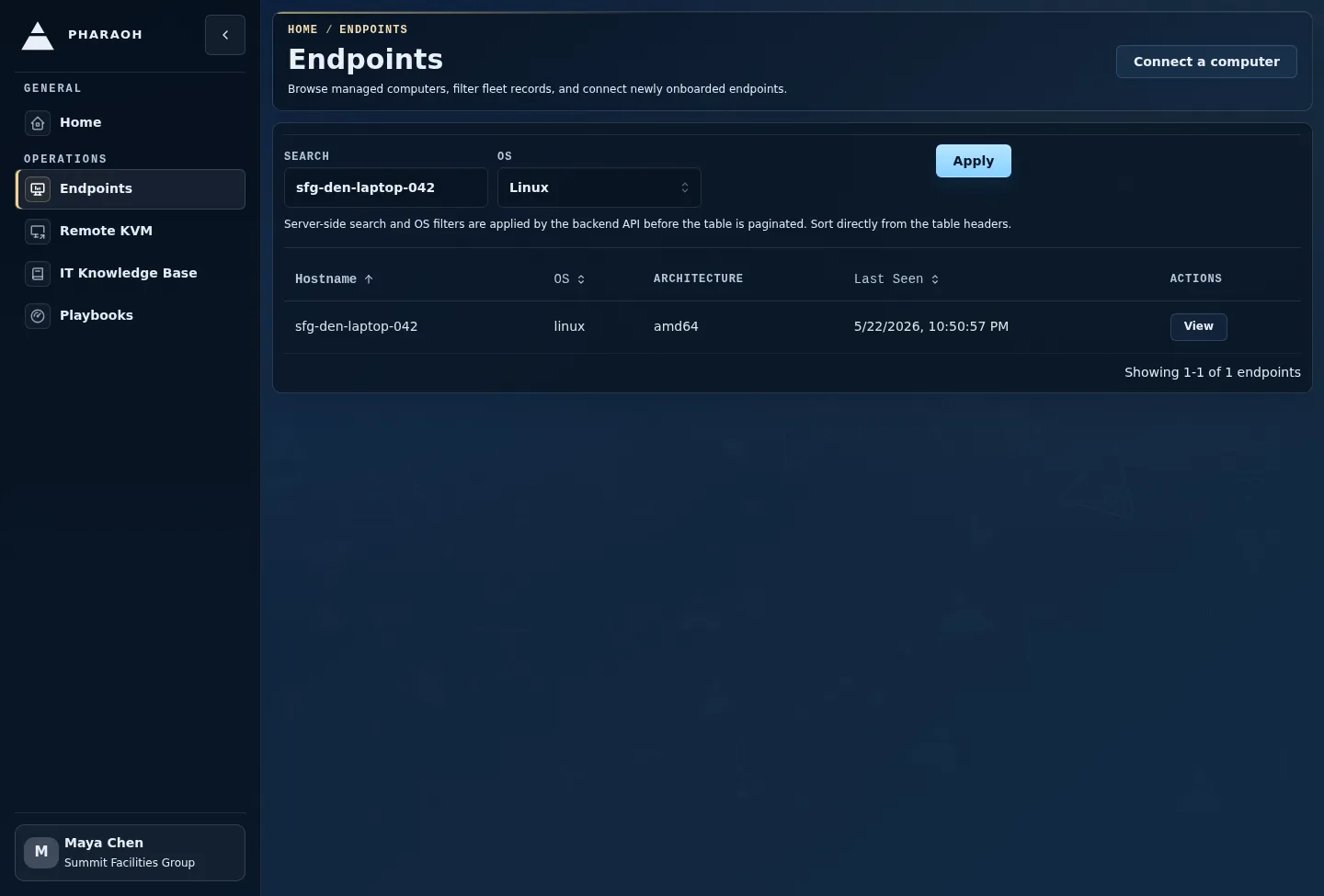
Decision points:
- No matching endpoint: clear filters and try a broader identifier.
- Still no matching endpoint: confirm enrollment before treating the machine as offline.
- Matching endpoint with recent
Last Seen: open details and investigate the reported symptom. - Matching endpoint with old
Last Seen: continue with freshness and diagnostics checks.
Step 2: Handle Empty Or Narrowed Lists
Section titled “Step 2: Handle Empty Or Narrowed Lists”An empty filtered list usually means the search is too narrow, the OS filter is wrong, or the machine has not enrolled.
Respond in this order:
- Clear the OS filter.
- Search by computer ID instead of hostname, or hostname instead of computer ID.
- Confirm the organization or fleet context.
- Use endpoint-enrollment troubleshooting if the machine still does not appear.
Do not start a session from a similarly named endpoint just to keep moving. Endpoint identity must match before you use live tools.
Step 3: Read The Endpoint Header
Section titled “Step 3: Read The Endpoint Header”Open the endpoint detail page.
Start with:
- hostname and
Computer ID - OS, architecture, and agent version badges
Last Seen- the
Sentinelpanel - the
Open Sessionsaction, without starting live work yet
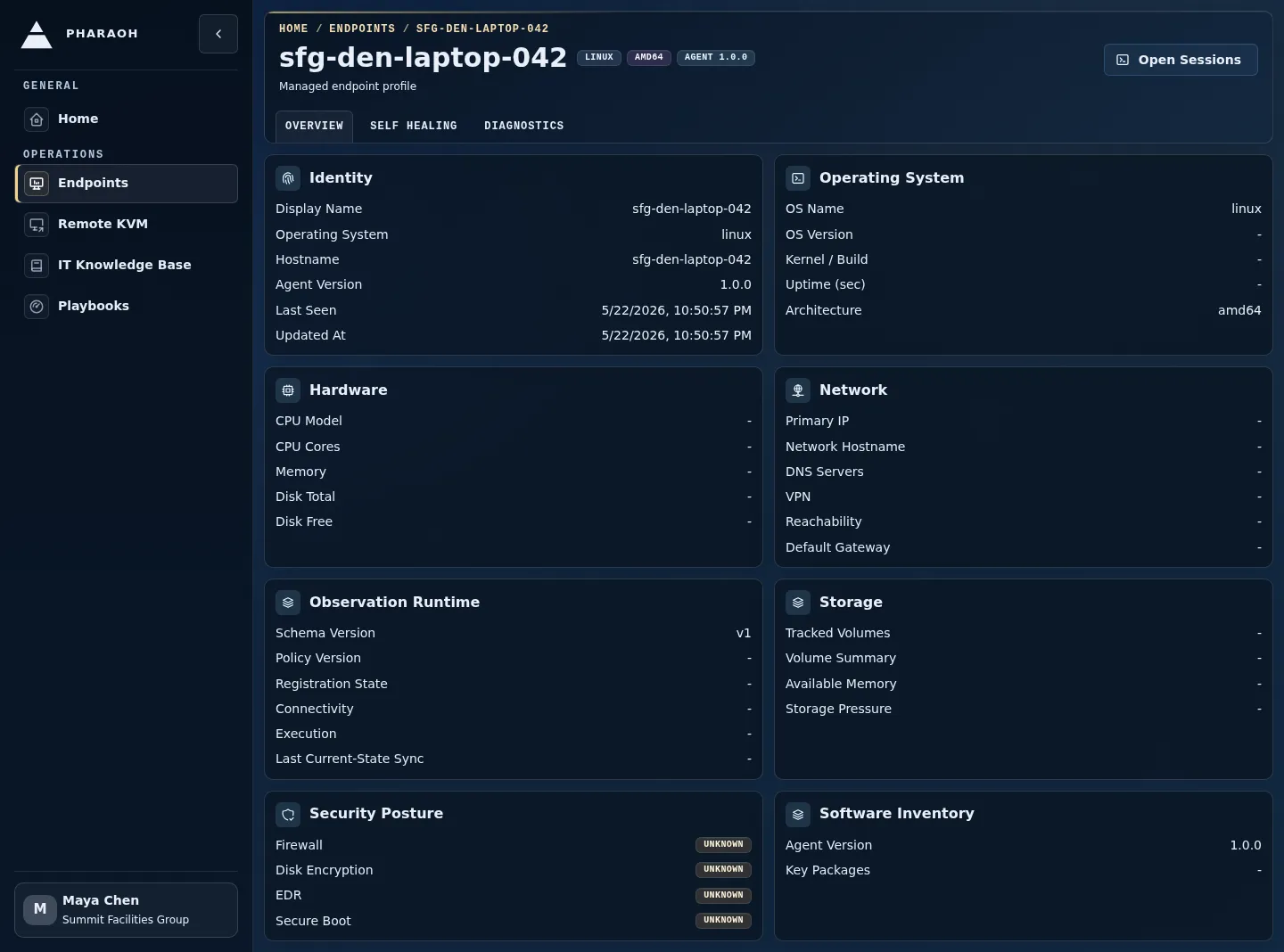
Decision points:
- Expected downtime: record that the endpoint is intentionally unavailable and stop unless policy requires follow-up.
- Unexpected stale endpoint: inspect
Diagnosticsbefore opening a live session. - Endpoint identity looks wrong: return to the list and find the intended endpoint.
Step 4: Inspect Diagnostics And Collection Freshness
Section titled “Step 4: Inspect Diagnostics And Collection Freshness”Use the endpoint detail tabs:
Overviewfor broad current state, security posture, and software inventory.Diagnosticswhen the endpoint is stale, partially collected, or inconsistent.
In Diagnostics, look for collection freshness, domain status, and collector errors. Pharaoh inventory reflects the last successful replicated endpoint snapshot, so the backend can lag the local endpoint when the control plane or agent transport is unavailable.
Decision points:
- One domain is stale or errored: scope the incident to that collector or domain.
- Most domains are old and
Last Seenis old: treat the endpoint as offline or unable to sync. - Diagnostics are fresh but the user reports a problem: move into live session or self-healing context.
Step 5: Check Sentinel And Self-Healing Context
Section titled “Step 5: Check Sentinel And Self-Healing Context”Read the endpoint Sentinel panel before starting manual work.
The panel can show statuses such as Passed, Failed, Timeout, Invalid output, Policy denied, Runner error, Stale, or Not configured. It can also show latest run timing, policy, active session links, pending escalation count, and endpoint knowledge document metadata.
Decision points:
Passedand recent: the stale concern may be limited to inventory or session transport.Failed,Timeout,Invalid output,Policy denied, orRunner error: follow Resolve a failed endpoint check.Stale: compare SentinelLast runwith endpointLast Seen.Not configured: use endpoint details and live investigation; do not assume self-healing is monitoring this endpoint.
Step 6: Decide Whether To Open A Session
Section titled “Step 6: Decide Whether To Open A Session”Use Open Sessions only when active investigation or live evidence will change the response.
Before relying on live context, check the session workspace for:
- current transport badge
- latest live frame or stale-frame messaging
- evidence ledger
- lifecycle controls and degraded-state guidance
Do not treat a missing or stale live frame as proof that the endpoint state is healthy. It means the live workspace does not currently have fresh visual evidence.
Step 7: Handle Session Lookup Or Live-Context Errors
Section titled “Step 7: Handle Session Lookup Or Live-Context Errors”If the session workspace cannot load the endpoint, treat it as an error state for the live workflow and return to static evidence until the endpoint record or route is corrected.
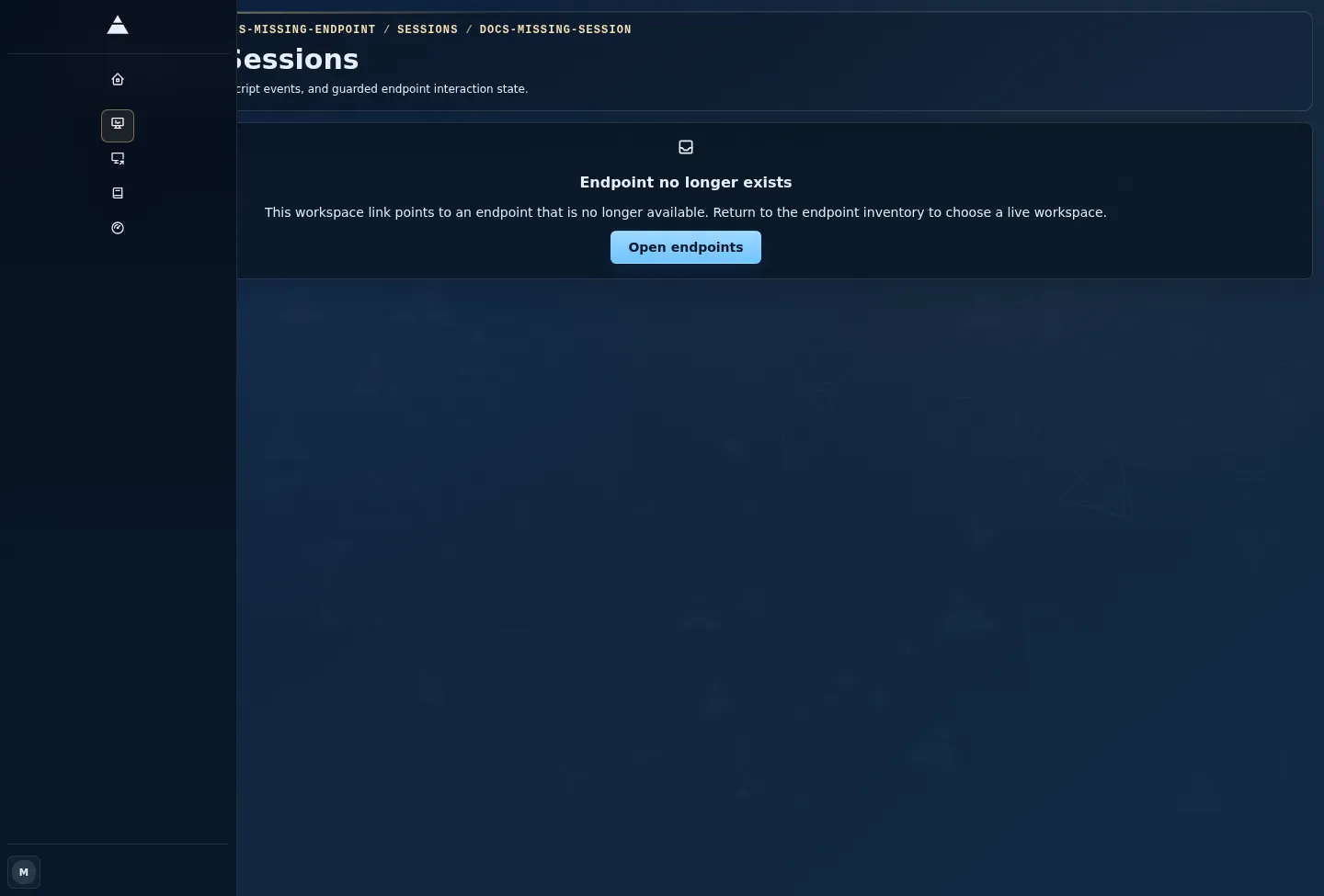
When this happens:
- Use the browser back action or
Endpoint detailslink if available. - Reopen the endpoint from the inventory instead of editing the URL manually.
- Confirm the endpoint still exists and the ID matches the details page.
- Record that live session evidence is unavailable if the error persists.
Success Criteria
Section titled “Success Criteria”The response is complete when you can state one of these outcomes:
- The endpoint is expected to be offline and no product action is needed.
- The endpoint was enrolled but is not syncing, and the next action is outside Pharaoh, such as restoring network or power.
- A specific inventory domain is stale or errored, and the investigation is scoped to that domain.
- Sentinel or self-healing already owns the failure path, escalation, or session.
- A live session has fresh transport and evidence for active work.
- A live session could not load the endpoint, and the response is based on details, diagnostics, and enrollment checks instead.