

Remote KVM
Remote KVM is the operator surface for discovering Android-hosted KVM devices, keeping their inventory records current, and launching or reopening the shared monitoring workspace for a specific device.
Where It Lives
Section titled “Where It Lives”Use the Remote KVM entry in the Operations navigation group.
The shipped web routes are:
/remote-kvmfor the Remote KVM inventory/remote-kvm/<remote-kvm-id>for device details and management/remote-kvm/<remote-kvm-id>/sessions/<session-id>for the Remote KVM session workspace
The session workspace route is not a sidebar destination. Operators usually reach it from the detail page after choosing Start session, Open session, or Reopen.
Remote KVM Inventory
Section titled “Remote KVM Inventory”The inventory page is the starting point when you need to find the right device before making changes or opening a session.
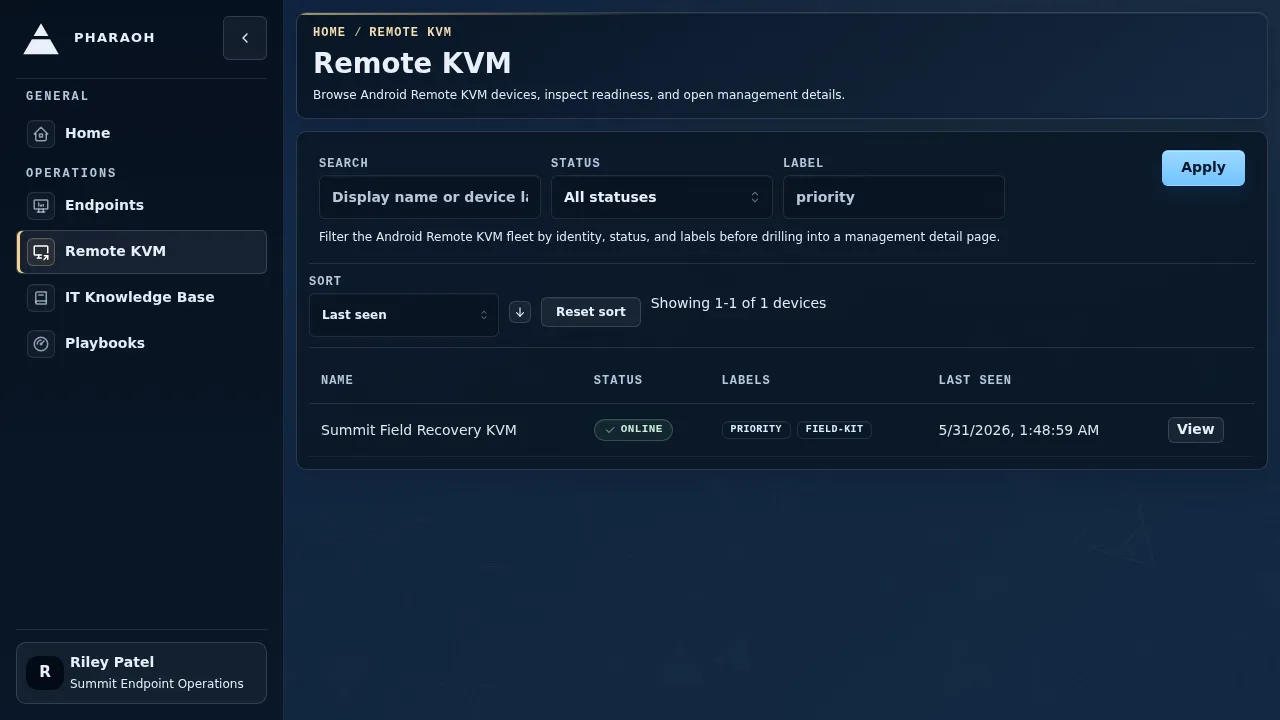
What you can do there:
- search by display name or stable device id
- filter by
Status - filter by
Label - sort the currently visible page by
Last seen,Name,Status,Device type, orAssociated endpoint - open the detail page for one Remote KVM record
Each row keeps the operator view compact:
- display name
- online or offline status
- current labels
Last Seen
If no rows match, Pharaoh keeps the filters in place and shows an explicit empty state instead of a blank list.
Remote KVM Details
Section titled “Remote KVM Details”The detail page is the authoritative management surface for one Remote KVM device.
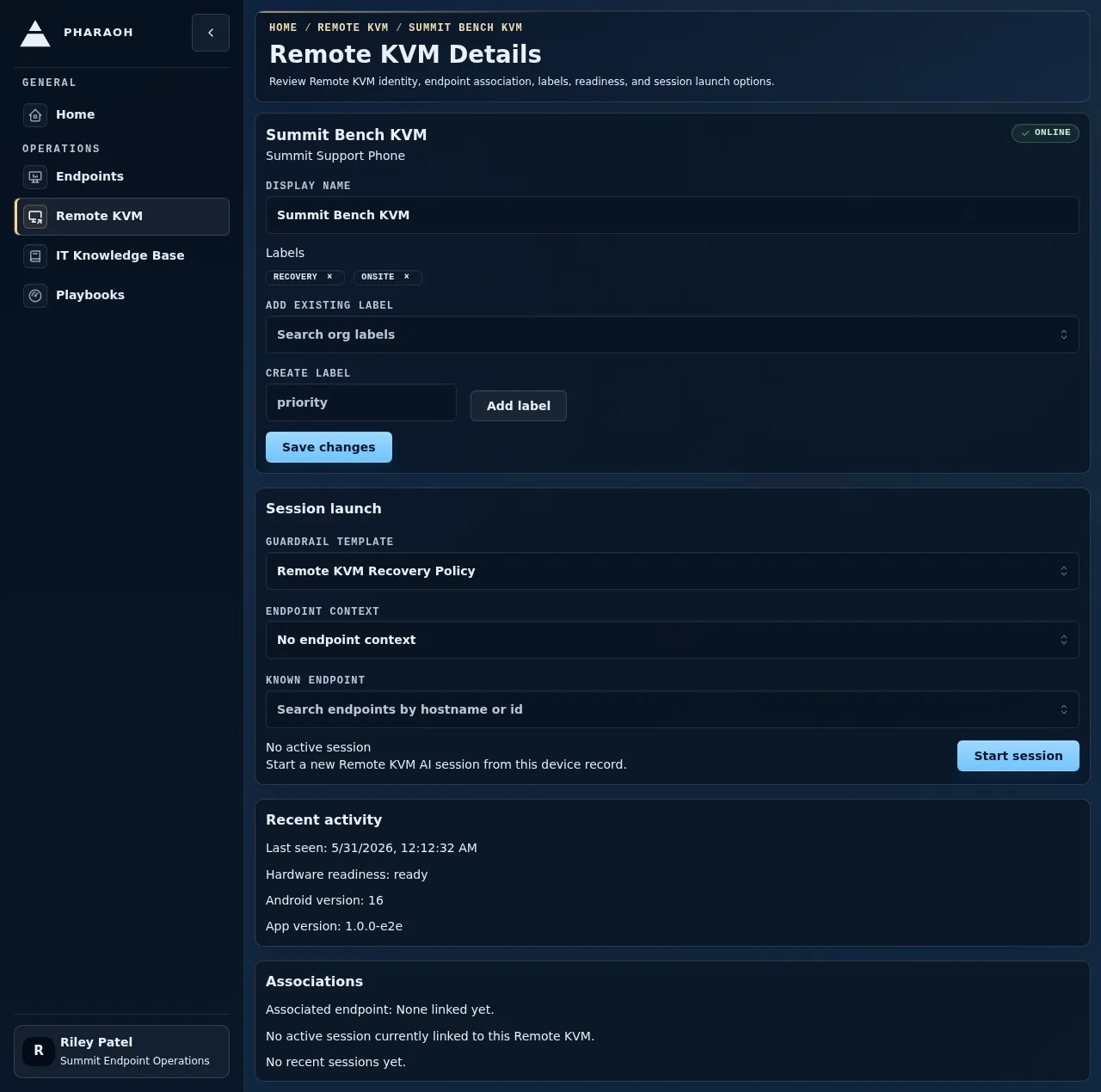
The page header gives you:
- the current display name
- the stable device id
- the current online or offline status
The editable controls let you:
- rename the device through
Display name - update labels using both existing-label autocomplete and new custom labels
- save the current management state without leaving the page
Duplicate manual names fail inline. Pharaoh does not silently auto-suffix the name you entered.
Start Session Versus Open Session
Section titled “Start Session Versus Open Session”The primary action on the detail page tells the truth about current session state:
Start sessionappears when the device has no active Remote KVM sessionOpen sessionappears when an active session already exists for that Remote KVM
Before starting a new session, the page requires a guardrail template. Endpoint context stays optional: you can keep No endpoint context for an unknown or brand-new computer, use the Remote KVM record’s linked endpoint when one exists, or search for another known endpoint and attach that endpoint to the new session.
The detail page also keeps a Recent sessions area so you can reopen prior session history without searching elsewhere.
Remote KVM Session Workspace
Section titled “Remote KVM Session Workspace”The session workspace is the monitoring and follow-up surface for one Remote KVM session.
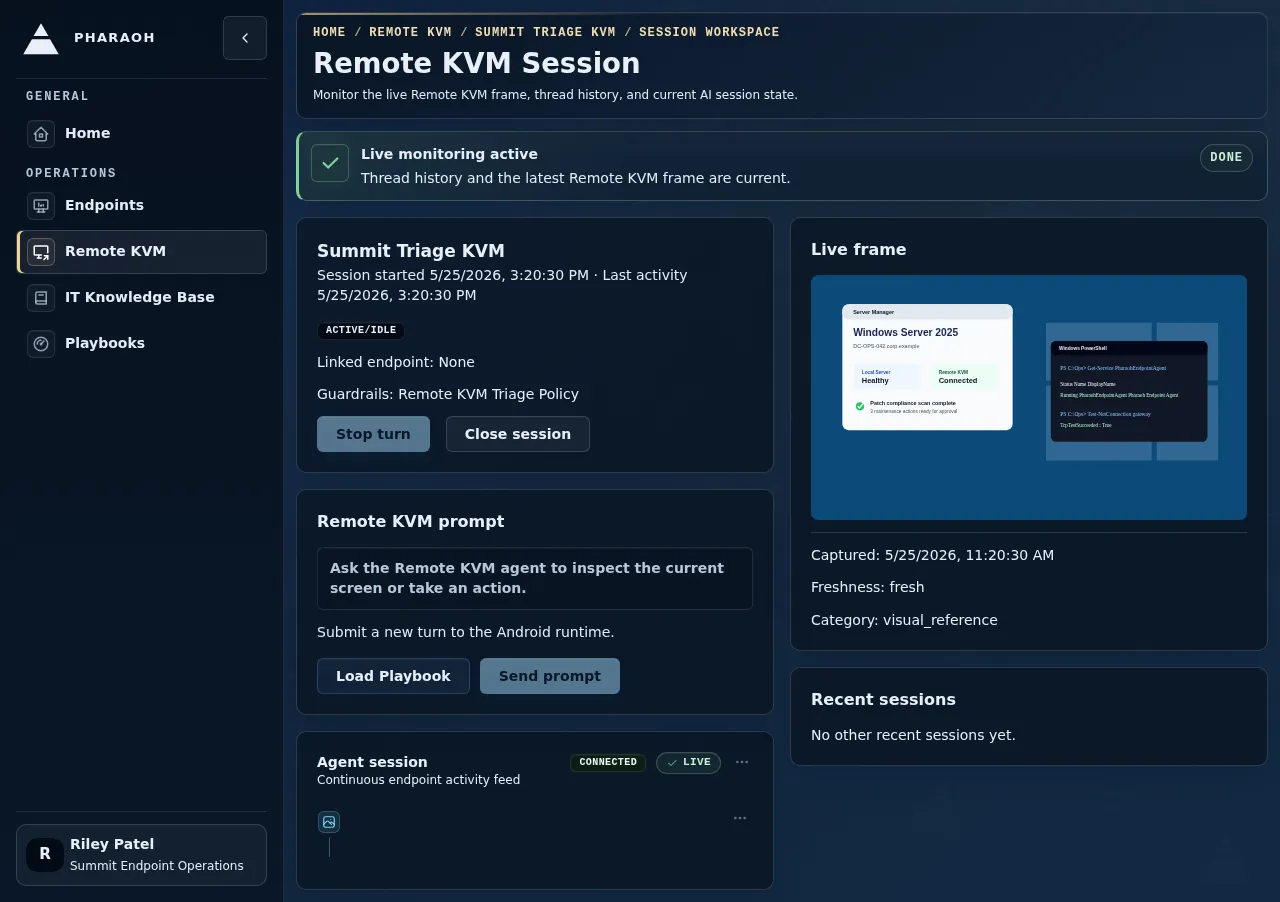
What you can do there:
- review the shared transcript through the embedded worklog
- monitor the latest published
Live frame - load a Playbook into the prompt draft with
Load Playbook - submit a new
Send promptfollow-up when the session is writable - use
Stop turnwhile a turn is running or stopping - use
Close sessionwhen the active session should end - reopen another recent session from the right-side session list
The workspace also keeps degraded-state messaging explicit. If the Android runtime is offline, the latest frame is stale, or no frame has been published yet, Pharaoh keeps the page usable while warning that monitoring may lag or be unavailable.
Load Playbook opens the same reusable Playbook picker used by other web composers. If the Remote KVM prompt draft already has text, Pharaoh asks before replacing it. Backend usage and metadata recording uses the normalized Playbook selection context sent with accepted prompts.
The web Load Playbook picker state is screenshot-backed through the end-user screenshot manifest as remote-kvm-playbook-picker. Android Remote KVM prompt insertion is documented as supported, but native Android screenshot capture remains outside the current ph docs end-user workflow.
Important Boundaries
Section titled “Important Boundaries”- Remote KVM monitoring uses the same canonical thread history model as other Pharaoh AI workspaces, but it is a separate product area from endpoint sessions.
- The Android handset remains the only shipped Remote KVM runtime in this cycle.
- Android Remote KVM supports Playbook insertion into its prompt flow, but native Android Playbook management CRUD is deferred for this cycle.