

Run Your First Endpoint Session
This tutorial walks through a first guarded endpoint session from the operator shell: find a machine, verify that it is the right endpoint, decide whether static details are enough, open the session workspace, and send the first turn.
Before You Start
Section titled “Before You Start”- You need to be signed in to the authenticated shell.
- Organization onboarding must be complete.
- The endpoint should already appear on the
Endpointspage. - Your organization should already have at least one approved guardrail template for endpoint sessions.
Step 1: Open The Endpoint Inventory
Section titled “Step 1: Open The Endpoint Inventory”Open Endpoints from the left navigation.
Use the list as your first safety check. The page gives you Search, an OS filter, Apply, sortable table headers, and a Connect a computer action for newly onboarded machines.
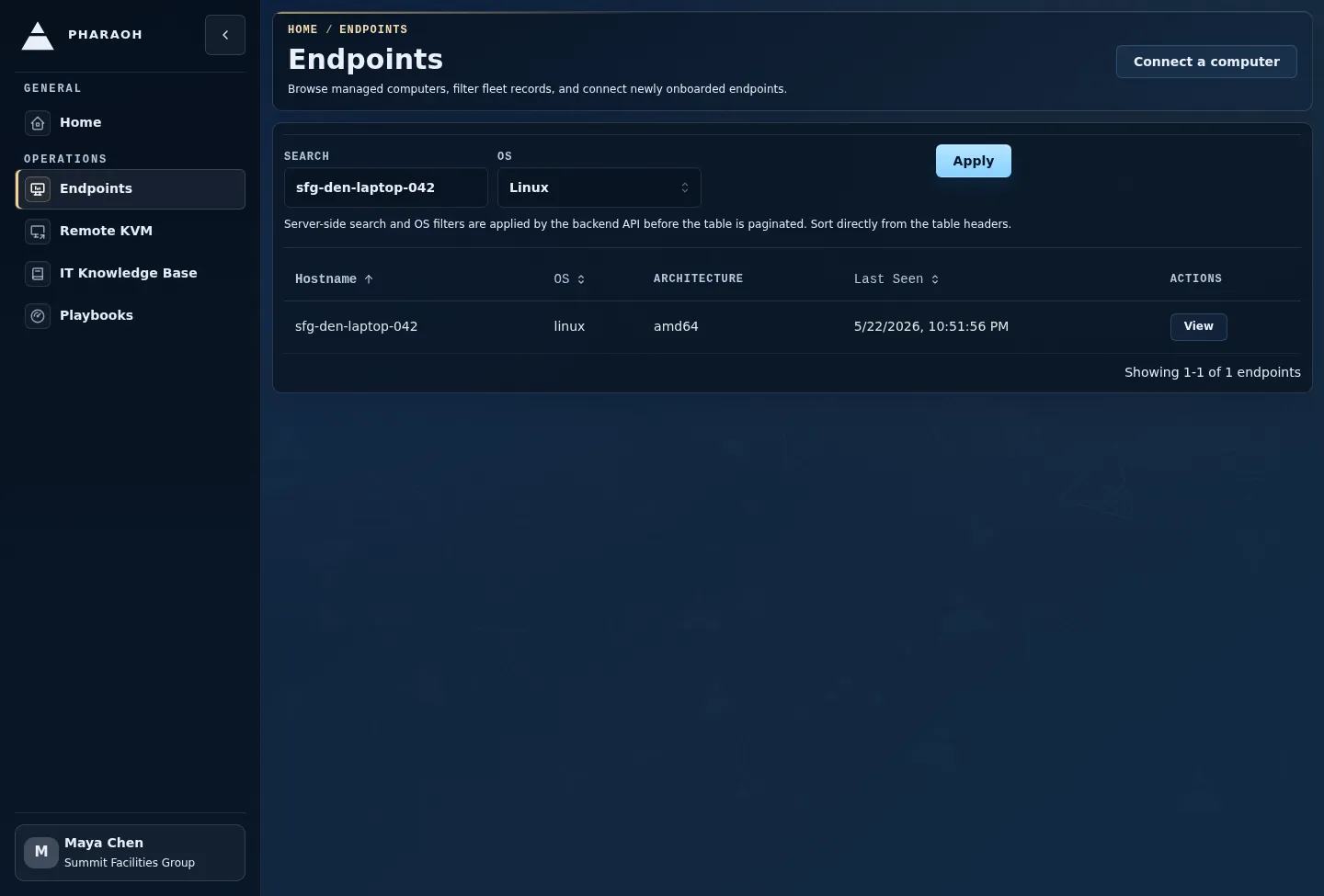
If the list is empty, clear the filters and try again. If the endpoint still does not appear, stop the tutorial and confirm that the endpoint agent was enrolled before you try to start a live session.
Step 2: Find The Endpoint
Section titled “Step 2: Find The Endpoint”Narrow the list in this order:
- Enter the hostname, computer ID, or another known identifier in
Search. - Choose an OS filter only when it helps remove noise.
- Select
Apply. - Sort by
Last Seenif several similar endpoints remain.
Choose the endpoint with the expected hostname and the freshest Last Seen value. A stale endpoint can still be reviewed, but it is a weak target for your first live session.
Step 3: Open The Details Page
Section titled “Step 3: Open The Details Page”Select View on the matching row.
On the endpoint details page, verify the machine before you move into live work:
- hostname and
Computer ID - OS, architecture, and agent version badges
Last SeenSentinelstatus plus any pending escalation count or endpoint knowledge document metadata- the
Overview,Self Healing, andDiagnosticstabs
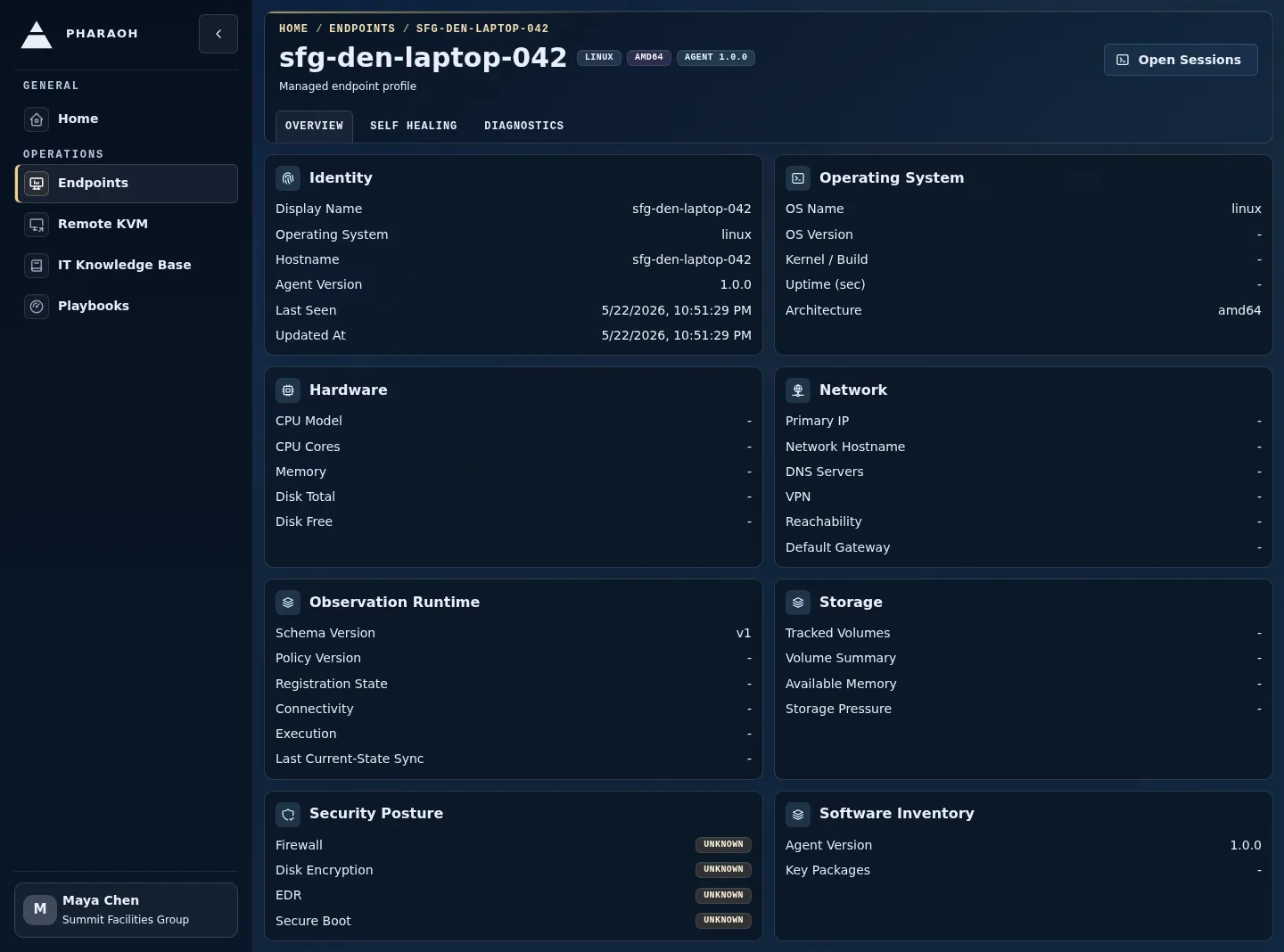
If the identity does not match the machine you expected, return to the list and choose a different row.
Step 4: Decide Static Review Or Live Session
Section titled “Step 4: Decide Static Review Or Live Session”Use the details page when you only need inventory facts, current-state summaries, or diagnostic freshness. This keeps the investigation simple and avoids starting a session you do not need.
Open a live session when you need any of these:
- a guided investigation with operator prompts
- live endpoint evidence
- guarded commands or remediation
- a worklog that records turns and endpoint activity
If Last Seen is old or diagnostics look stale, treat the session as investigative only until the live workspace shows fresh transport and evidence.
Step 5: Open The Session Workspace
Section titled “Step 5: Open The Session Workspace”Select Open Sessions.
The endpoint-scoped workspace is where live view appears. It shows the endpoint session header, an Agent worklog, a Follow-up box, lifecycle controls, and the Live endpoint intelligence panel.
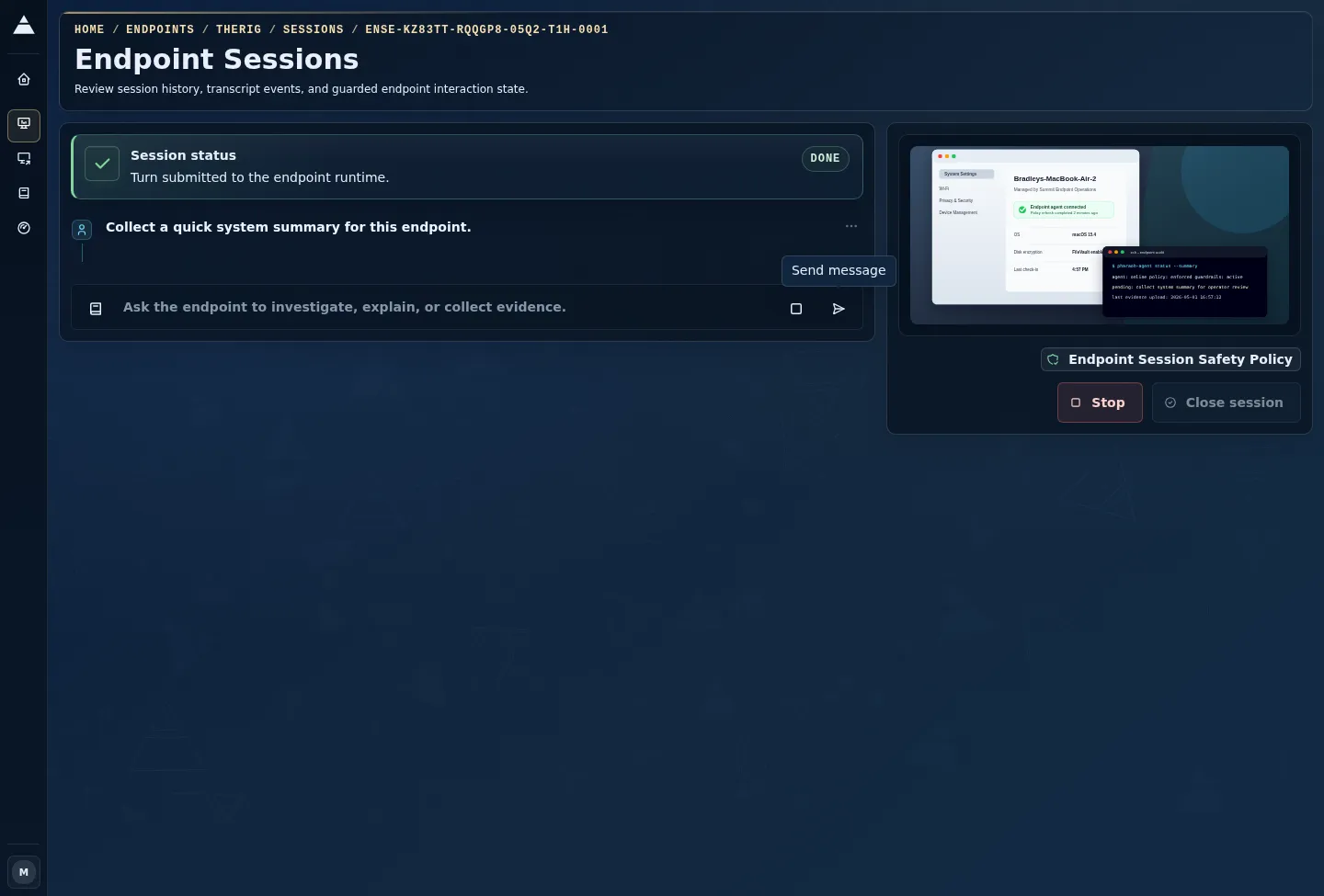
If Pharaoh shows a start state instead of an active transcript, choose the appropriate guardrail template and start the session before sending a turn.
Step 6: Send The First Turn
Section titled “Step 6: Send The First Turn”Use the Follow-up box for a low-risk first request, such as:
Summarize this endpoint's current health and call out anything that needs operator attention.Select Send turn.
While the turn runs, watch:
- the session-state chips in the header
Agent worklogentries for conversation and execution outputLive endpoint intelligencefor frame freshness, transport state, evidence, and policy posture
If Send turn is disabled, check for an empty draft, a running turn, a closed session, or a required guardrail selection.
Step 7: Handle Stale Or Error States
Section titled “Step 7: Handle Stale Or Error States”Do not treat a missing frame, stale frame, or degraded transport as proof that the endpoint is healthy. It only means Pharaoh does not currently have fresh live evidence.
Use this response pattern:
- Compare the workspace state with
Last Seenon the endpoint details page. - Check
Diagnosticsfor stale domains or collector errors. - Use
Stop active turnif a turn is running but no longer useful. - Use
Close sessionwhen you are done or need to end the session cleanly.
Closed sessions stay available through recent-session recovery, so you can review the worklog later without creating another session immediately.
What Success Looks Like
Section titled “What Success Looks Like”You are ready for day-to-day endpoint work when you can:
- find the endpoint from the inventory
- verify identity and freshness on the details page
- explain why the details page is or is not enough
- open the endpoint session workspace
- send a first guarded turn
- identify stale, missing, or degraded live evidence before relying on it