

Manage Local Assistant Policy
Use this guide when you need to enable, disable, or update the default policy assignment that endpoint agents cache for the local end-user assistant.
For the local browser workflow on the endpoint computer, see Use Endpoint Local Web.
Before You Start
Section titled “Before You Start”- You need an organization admin role.
- You need at least one execution guardrail template if you plan to enable the assistant.
- Decide whether offline use should remain available while the cached policy is still within its expiry window.
Step 1: Open The Policy Page
Section titled “Step 1: Open The Policy Page”Open Local Assistant Policy from the Security navigation group.
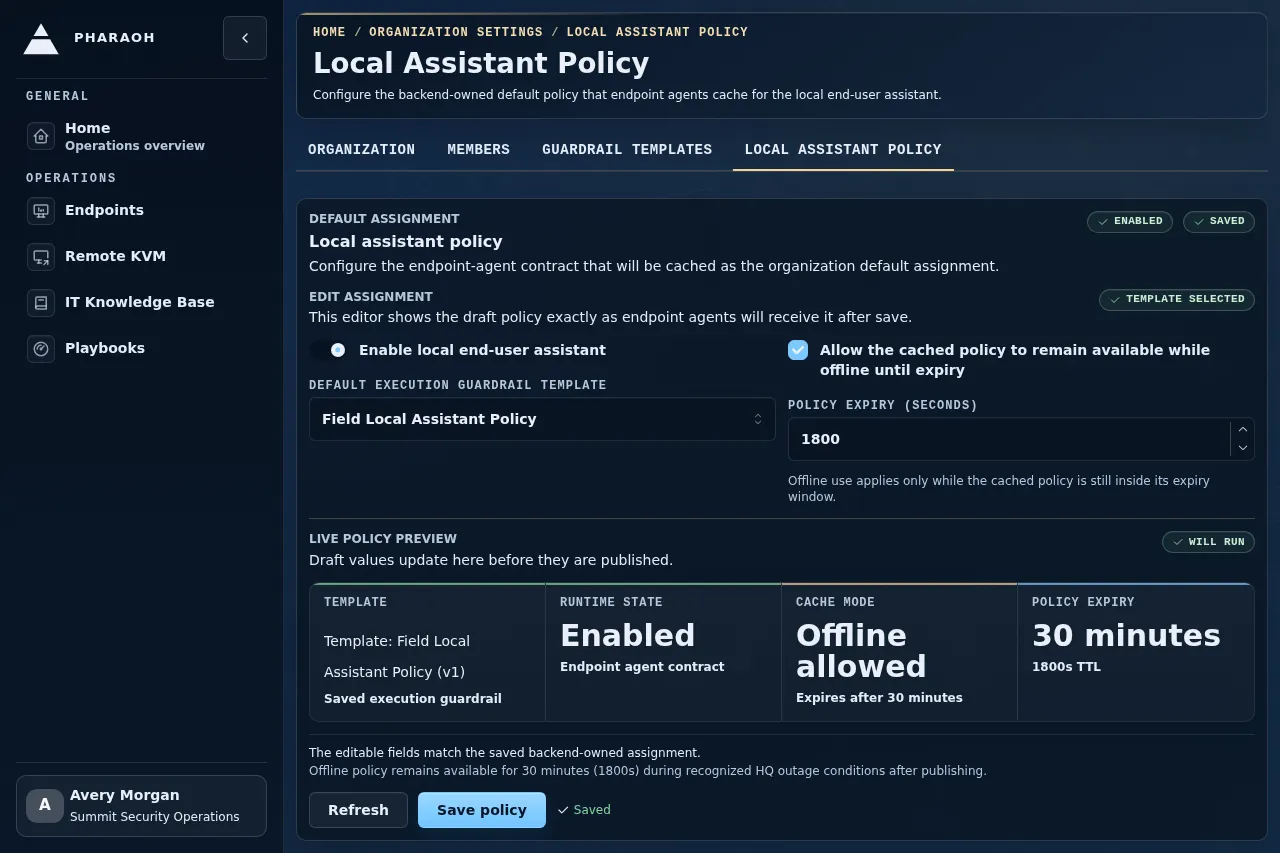
The page opens with the default assignment workspace. The left side summarizes the current saved policy, while the right side holds the editable assignment controls and save action.
If you are not an admin, Pharaoh shows Admin access required and the page should be treated as read-only guidance rather than a writable workflow.
Step 2: Read The Current Assignment
Section titled “Step 2: Read The Current Assignment”The assignment status badges tell you whether the local assistant is currently:
EnabledDisabled
New organizations and endpoints resolve the local assistant as enabled by default only when Pharaoh can find the approved default guardrail template. If no approved default template is available, the endpoint runtime config fails closed and the endpoint-local assistant reports that it is unavailable.
When a policy already exists, the current saved policy area also shows:
- the selected template name and version
- whether offline cache use is allowed
- the policy expiry, including a human-readable duration and the exact TTL in seconds
If nothing has been assigned yet, Pharaoh shows No default assistant policy assigned.
Step 3: Configure The Editable Fields
Section titled “Step 3: Configure The Editable Fields”The Edit assignment area exposes the main policy controls:
Enable local end-user assistantDefault execution guardrail templateAllow the cached policy to remain available while offline until expiryPolicy expiry (seconds)
Important rule: if you enable the assistant, you must also select an execution guardrail template before the save can succeed.
When the draft values differ from the saved policy, Pharaoh marks the assignment as Unsaved changes. If you enable the assistant without choosing a template, the page shows Needs template and an inline Template required warning beside the controls.
Step 4: Save Or Disable The Assignment
Section titled “Step 4: Save Or Disable The Assignment”Use Save policy from the assignment footer after the editable fields reflect the exact behavior you want.
Typical examples:
- enable the assistant and bind it to a default execution template
- keep the assistant enabled but change the cached-policy expiry
- disable the assistant while preserving the page as the place to re-enable it later
Use Refresh from the same footer when you want to discard local uncertainty and reload the backend-owned assignment.
Step 5: Confirm The Persisted Result
Section titled “Step 5: Confirm The Persisted Result”After a successful save:
- the assignment status badges update
- the current saved policy reflects the selected template, offline behavior, and expiry
- the template details panel reflects the selected template version and enabled guardrail domains
- the
EnabledorDisabledbadge matches the saved state
If you disable a previously saved assignment, reload the page once to confirm the disabled state remains after refresh.
Step 6: Understand The Endpoint-Local Impact
Section titled “Step 6: Understand The Endpoint-Local Impact”The policy page controls the backend-owned local end-user assistant policy used when assistant work is started through supported product surfaces. Endpoint Local Web no longer hosts local chat, local transcript history, or assistant work during outages; it remains a loopback-only enrollment, status, logs, and settings surface.
If backend policy or control-plane availability prevents assistant work, the assistant surface should fail closed and explain the unavailable state instead of silently accepting work.
If the local browser session is closed, the endpoint-local surface tells the user to reopen it from the endpoint-agent tray menu before using local diagnostics or settings.
Endpoint-local screenshots for Status, Logs, Settings, and expired-session workflows are first-class ph docs end-user capture and verify rows backed by deterministic Endpoint Local Web fixtures. They prove the documented local UI states without requiring a live endpoint-agent tray session or a Pharaoh backend user account.
Production Update Limit
Section titled “Production Update Limit”Existing production accounts are not updated by changing this policy code or by reading this guide. Production updates require explicit operator approval, production credentials, a dry run, redacted target counts, an applied upsert count, redacted readback, and a rollback note.
What Success Looks Like
Section titled “What Success Looks Like”You are done when all of the following are true:
- the assignment status badge shows the intended enabled or disabled state
- the selected execution template is the one you expect
- offline behavior and expiry match the intended policy
- a page reload preserves the assignment you just saved
- endpoint-local behavior matches the saved policy when the assistant is available, offline, or closed